Collaborating with others on Guvnor
Guvnor allows you to create member accounts that are intended for multi-person businesses to collaborate with one User account. Currently, it is free to create member accounts with access to unlimited clients provided you are subscribed to the Premium plan.
To invite someone to join your team, go to Settings → Team Members.
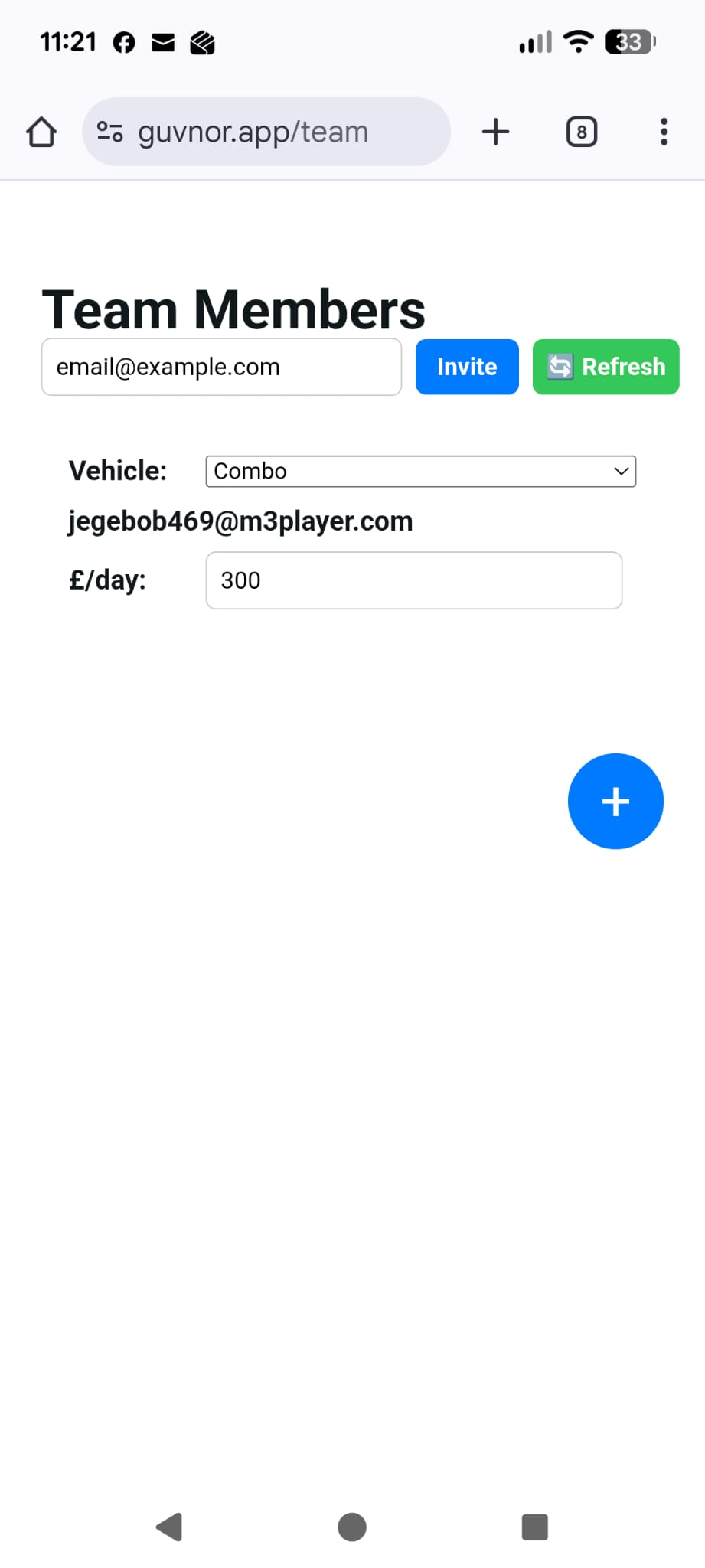
Enter their email address and they'll receive an invite code — they don't need a Guvnor account yet. While an invite is pending you can cancel it from the same screen.
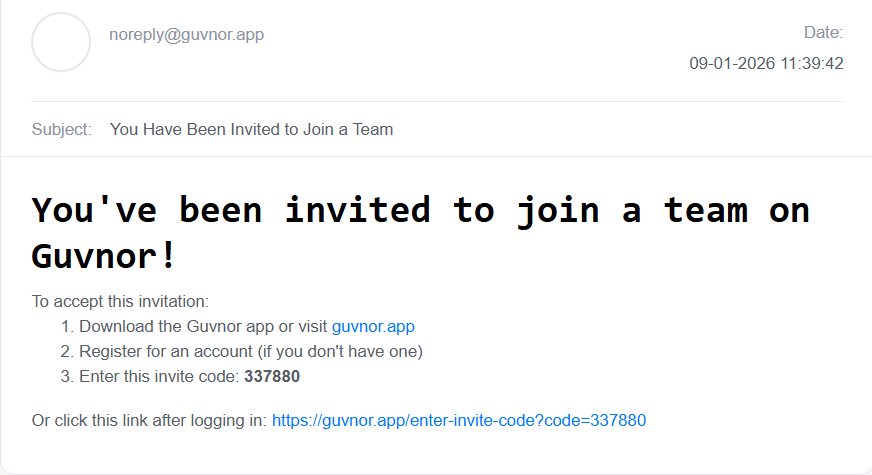
They register (or log in) and enter this code the first time they open Guvnor.
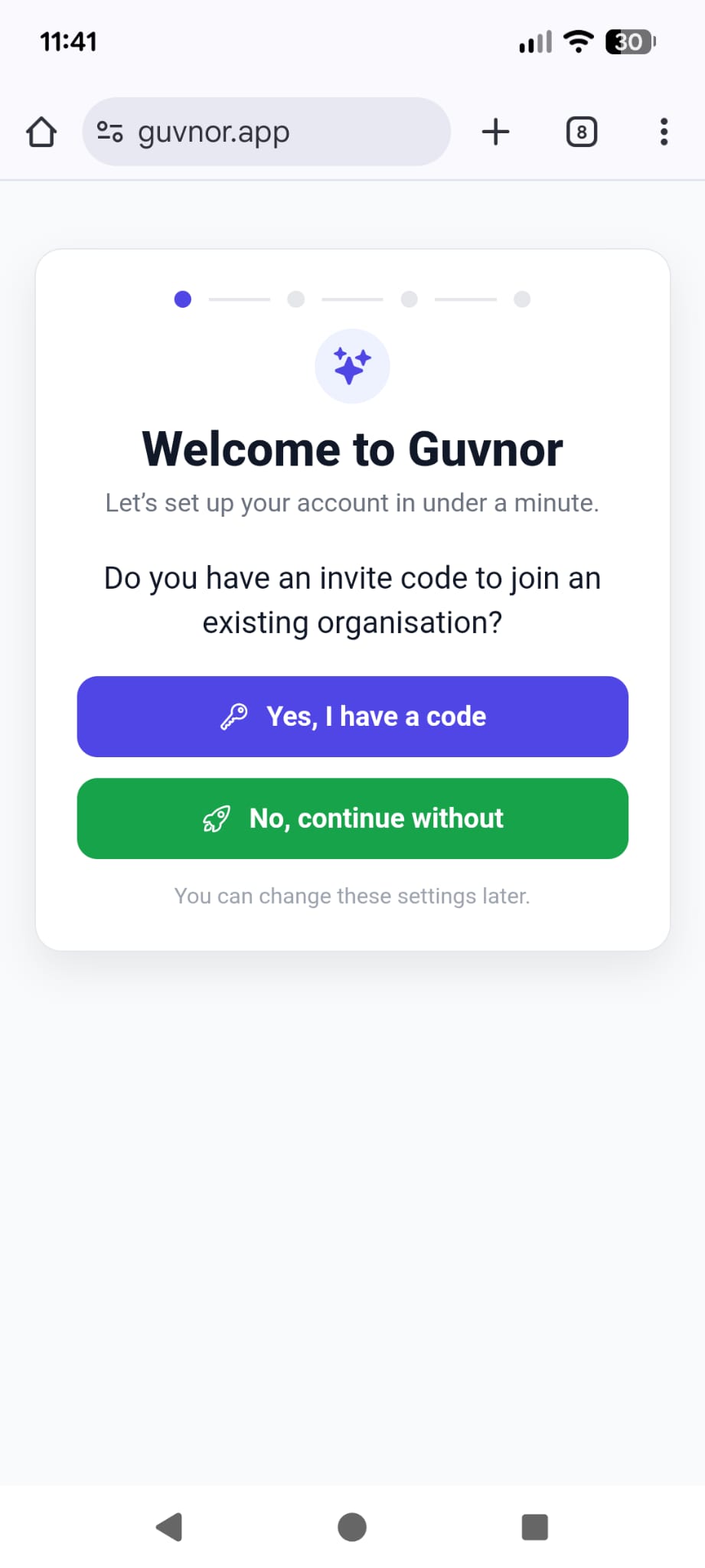
Alternatively, they can go into the Teams screen in Settings, where you sent the code.
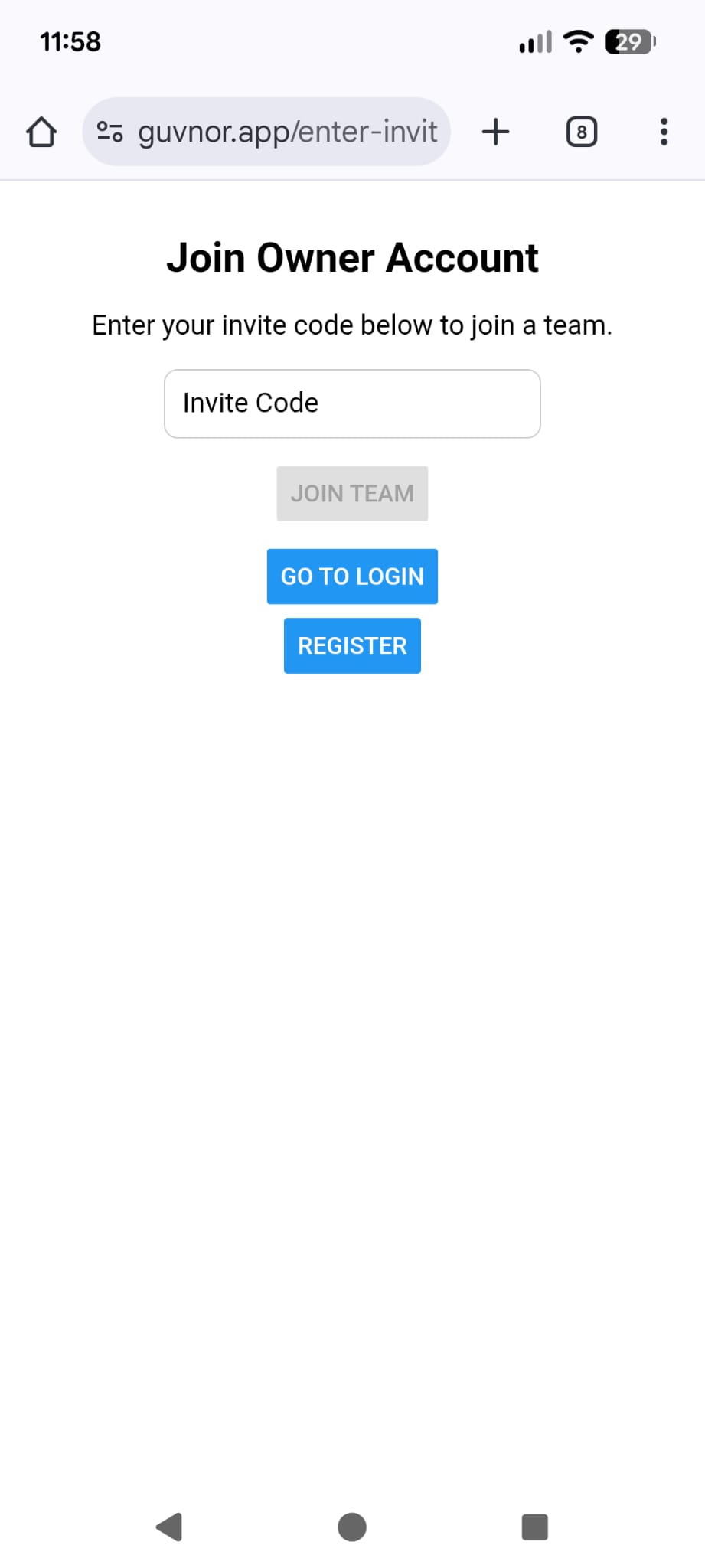
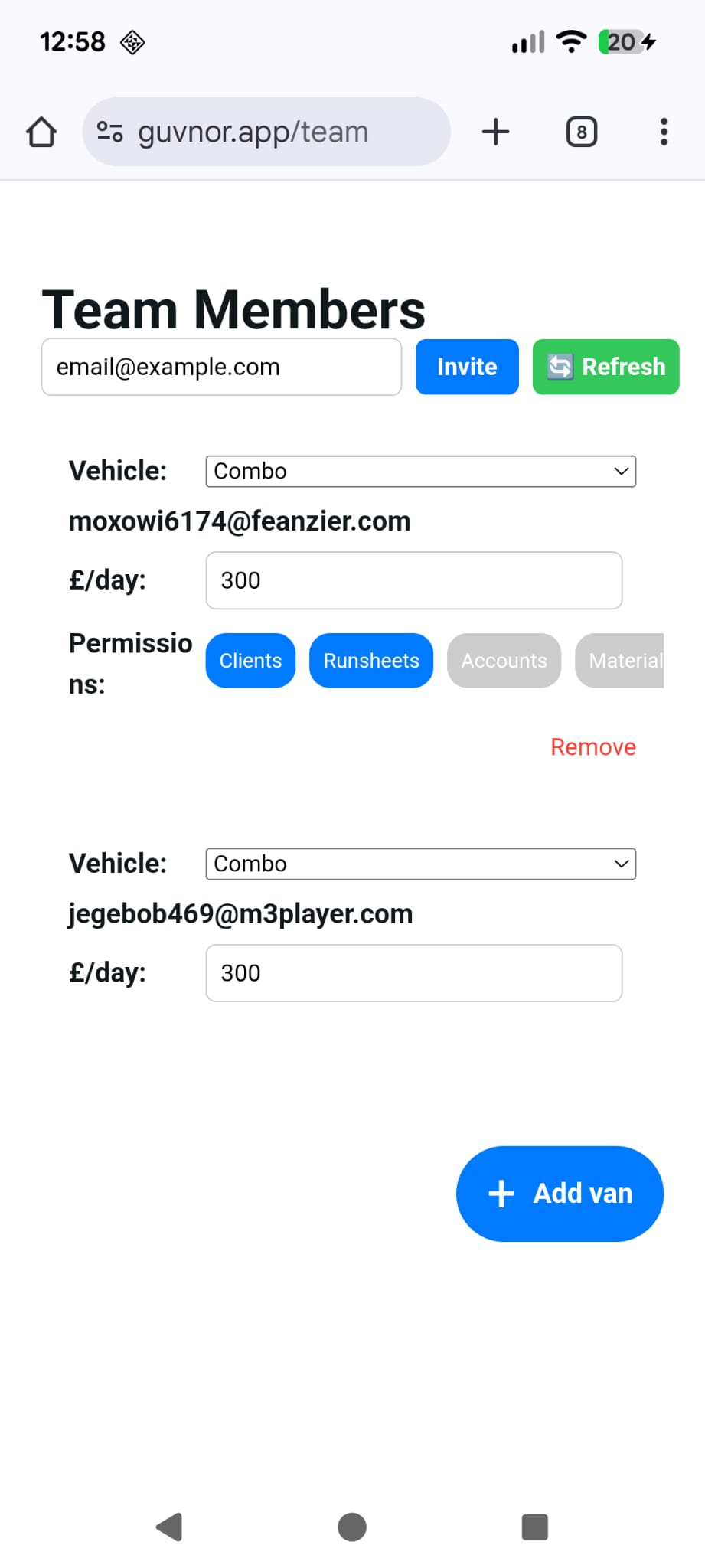
After they have done this, you may need to refresh the page/app. You will then see them added to the Team Members screen, where you can assign them to a vehicle, set what they can access in your account (clients, runsheets, round order, accounts, materials and new business are each individually switchable) and set their daily rate — the value of work in £ they can get through in a day, which drives how the runsheet shares jobs out. See the vehicles guide for how vehicles, daily rates and the rota combine on multi-van days.