GoCardless setup
Guvnor supports GoCardless. This guide will show you how to do the first set up to link your Guvnor Account to GoCardless and then how to set up each GoCardless customer as you onboard them in future.
First Time Set up/Linking With GoCardless
In the settings menu which can be opened by tapping on the gear icon on the home screen, near the top you will find "Link Gocardless"
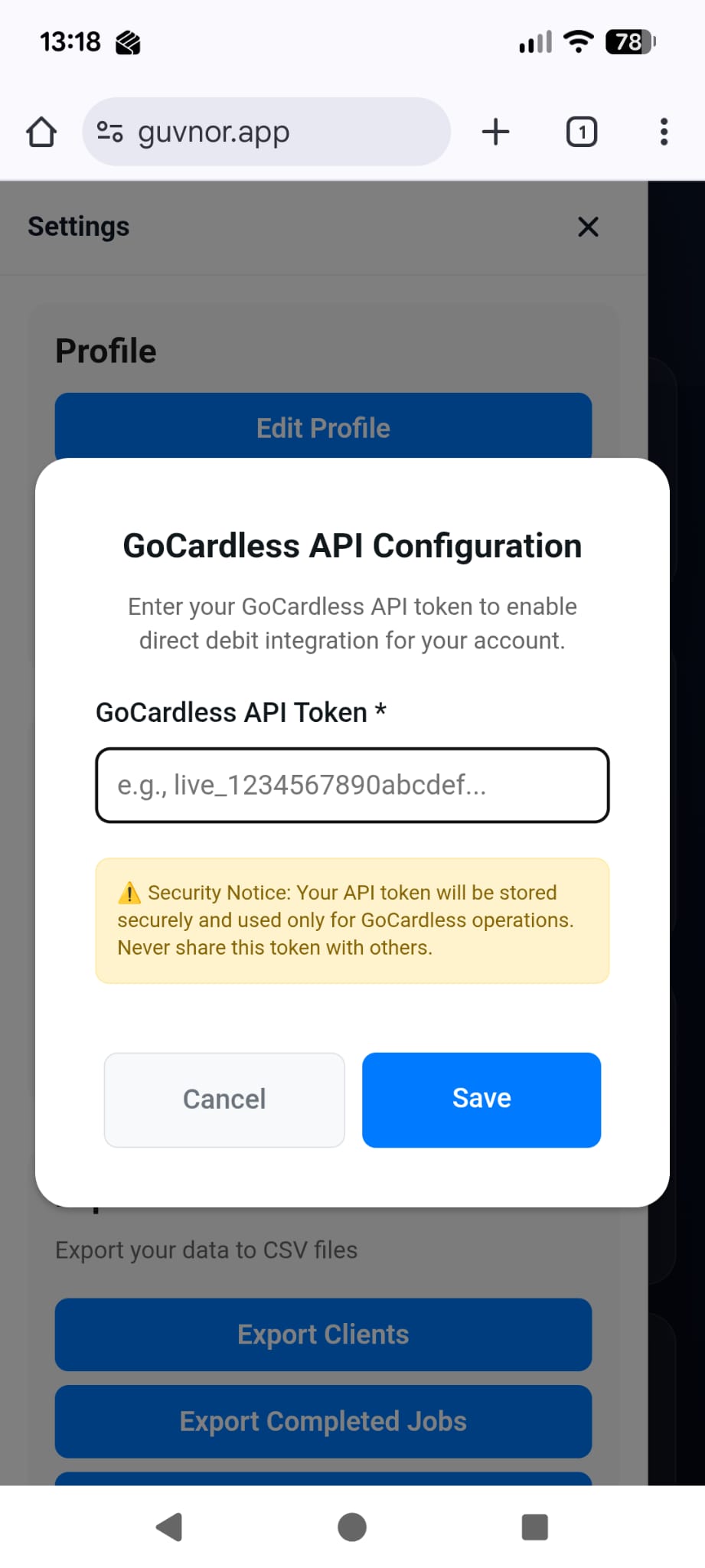
You can find this API token by logging in to your GoCardless account and going to API settings which is found at manage.gocardless.com/developers.
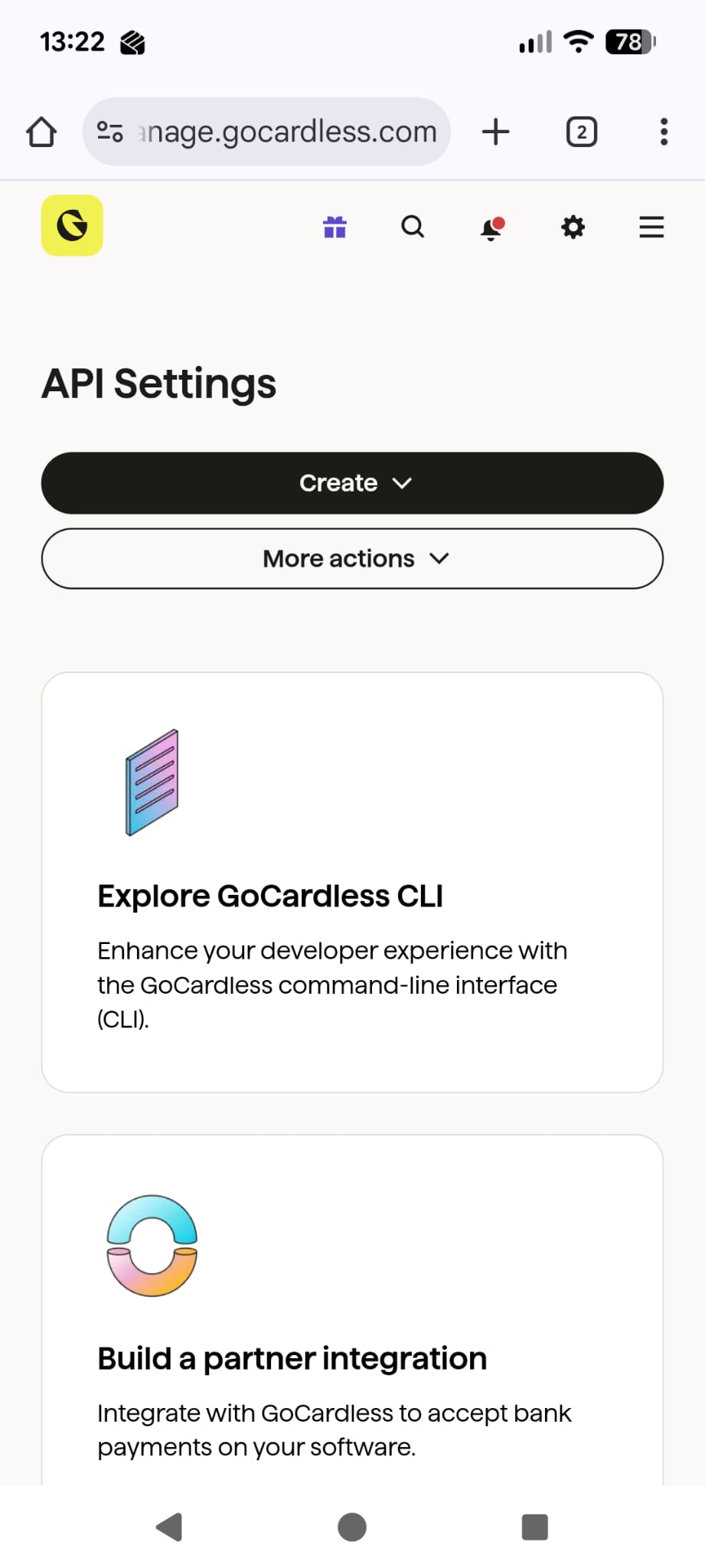
Tap on the create button and then select "Create access token" Call it Guvnor and select Read-Write access for Scope.
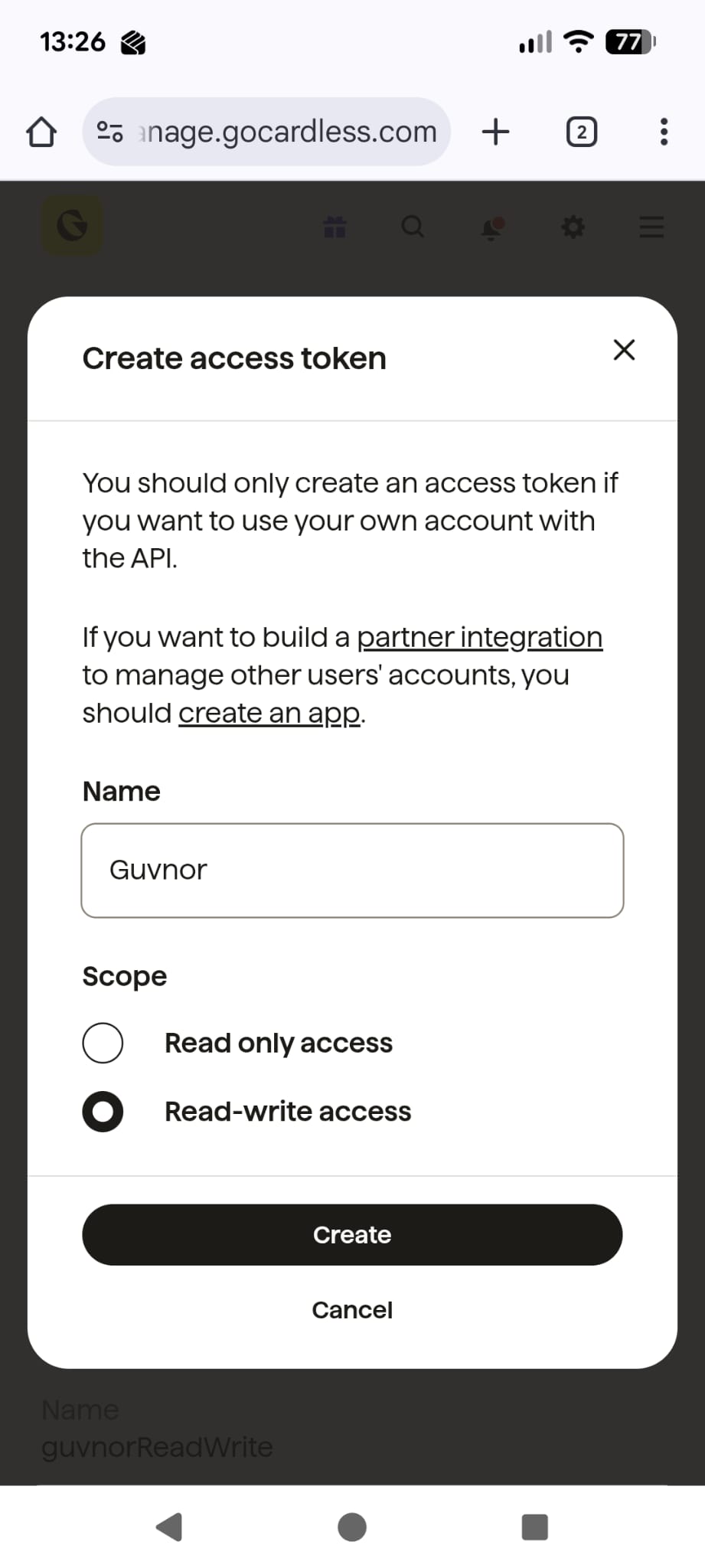
Now copy that code and paste it into the screen in Guvnor. Tap on the green Test button to check it. On the mobile app this tests the connection to GoCardless; in a web browser it checks the token looks right (the full connection is confirmed the first time it's used).
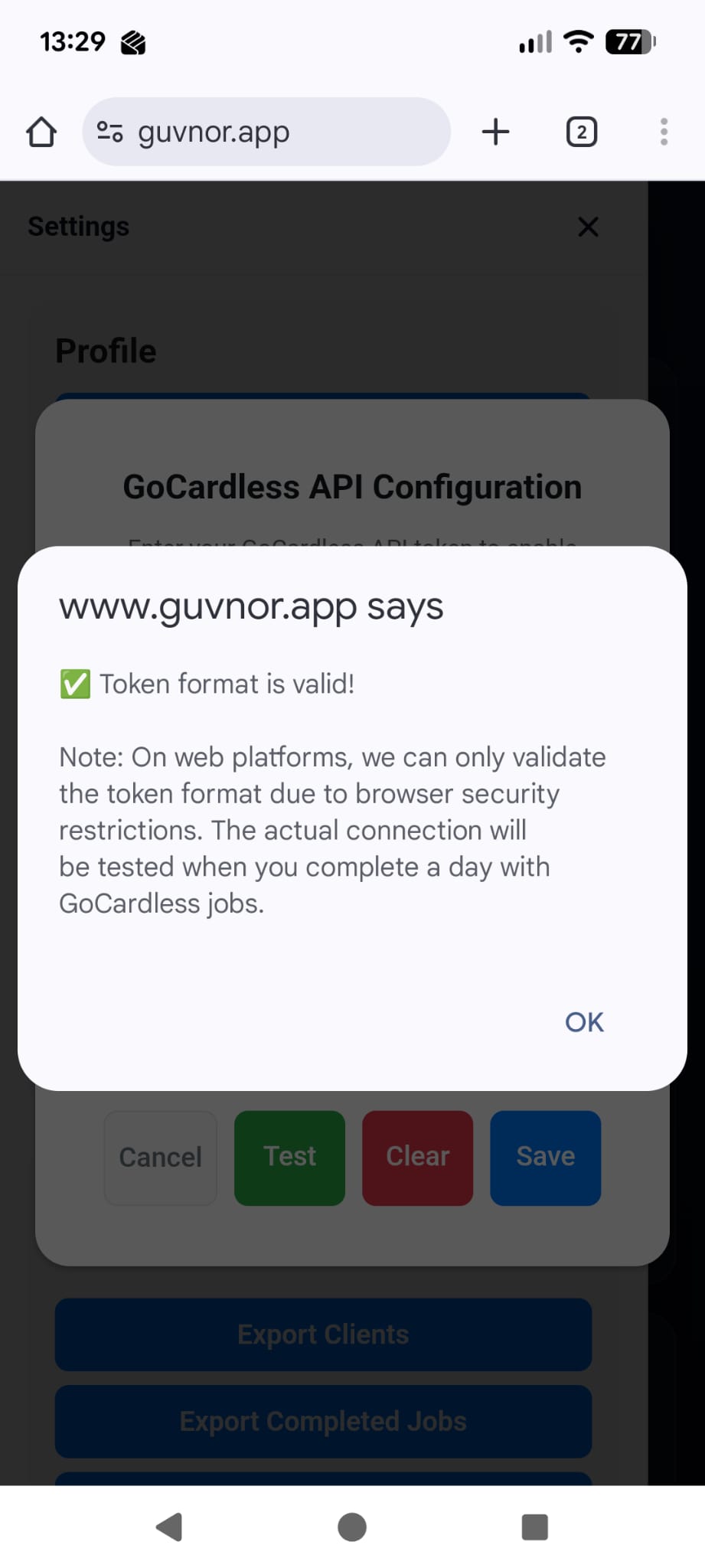
You can now tap the blue Save button. GoCardless is now linked to Guvnor.
Setting Up A New GoCardless Customer
For each of your Clients that use GoCardless, You simply need to access their account on GoCardless and copy their ID.
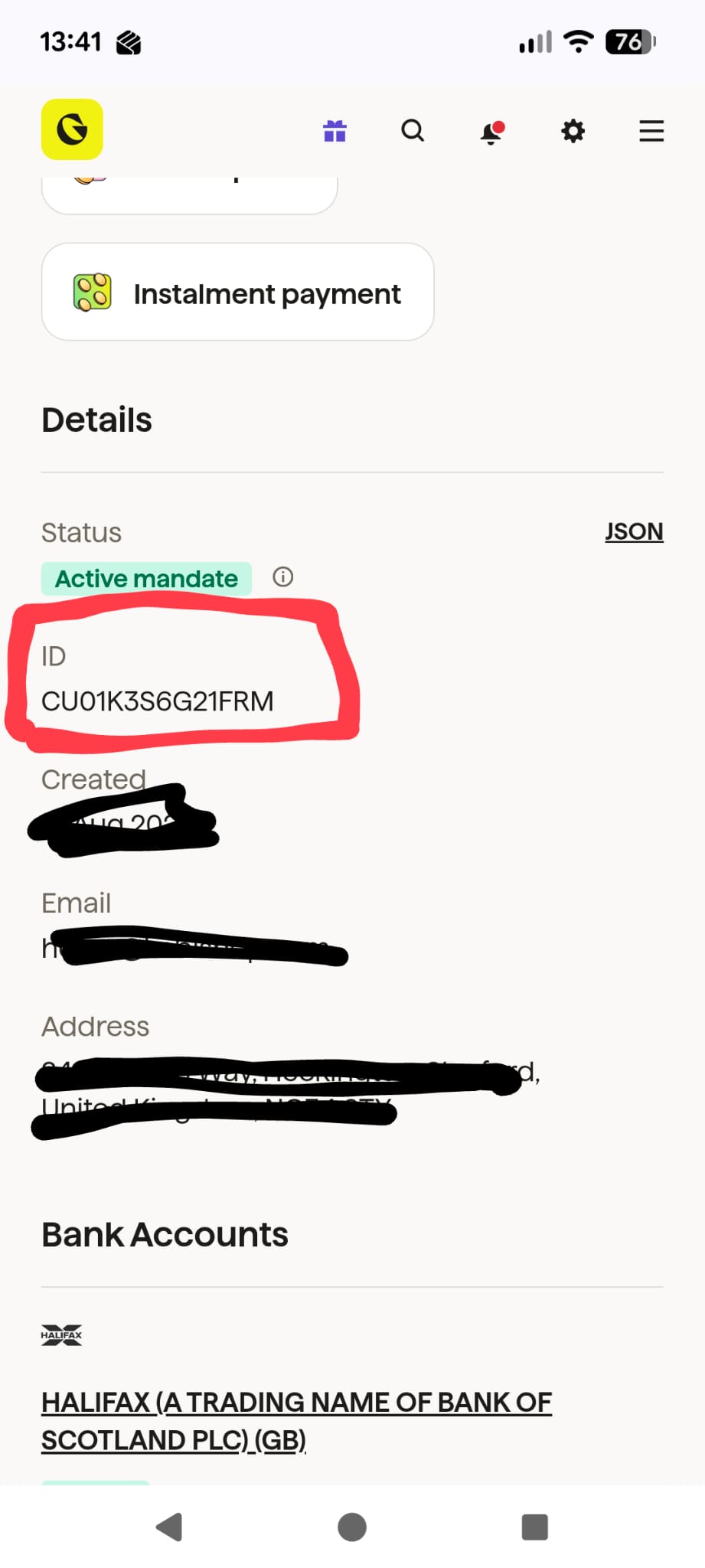
And paste it into their Guvnor client account. Under Quick Actions, you'll see a GoCardless button. Tap on this, set GoCardless Customer to True and paste in the ID you copied earlier. (Setting it back to False clears the stored ID, after a confirmation.)
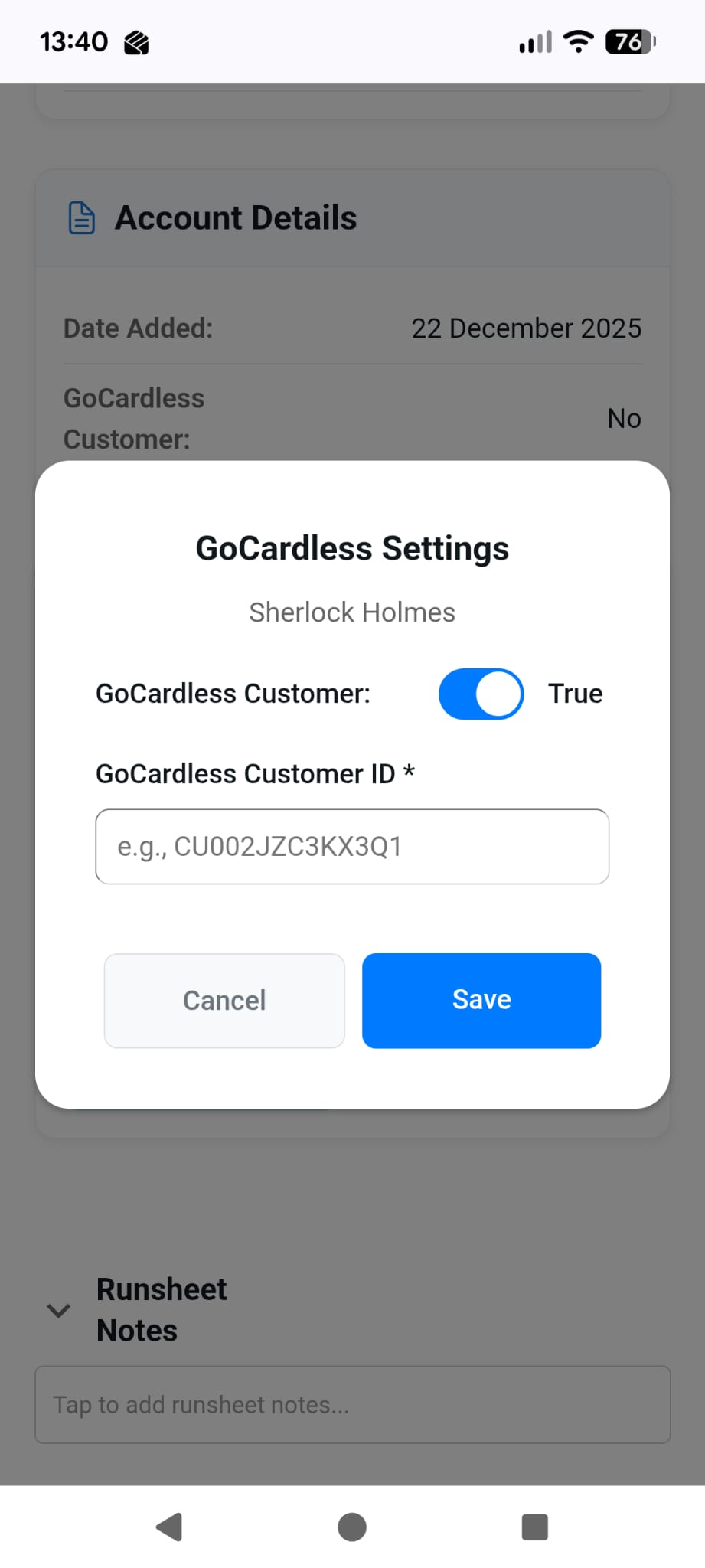
This customer is now set up to be billed automatically via GoCardless. Their runsheet jobs carry a DD badge, and when you mark a day complete Guvnor creates the Direct Debit payments for that day's GoCardless customers for you — no manual collection needed.